Your router password: why the one on the sticker is not the point
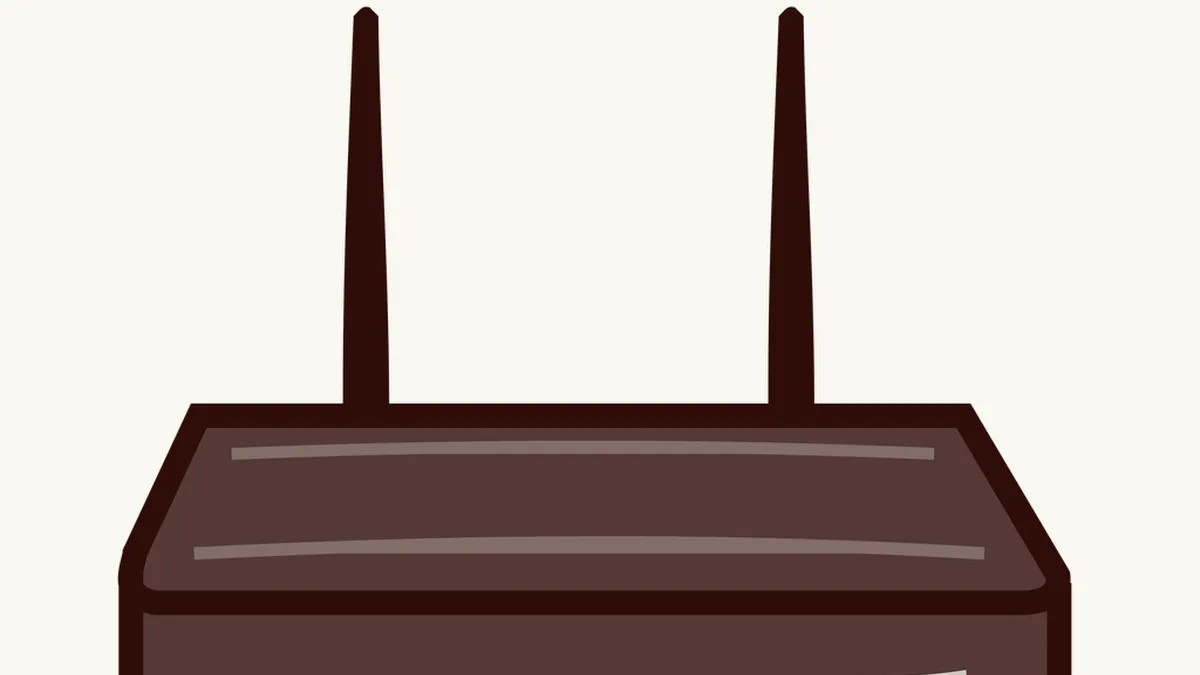
The router is the most forgotten device in the house and the only one every single thing you do online passes through. Almost nobody has touched it since the engineer left, and that sticker underneath holds more than it seems: two different passwords, with different jobs and different levels of urgency.
The sticker on a router usually carries two things people conflate:
- The Wi-Fi key. The one you type into your phone to connect. Everyone knows this one.
- The admin username and password. The ones that open the device’s configuration panel. Almost nobody has ever touched these, and they are the important ones.
They are different things. Changing one does not change the other.
Why the admin one is the urgent one
The admin panel controls the entire router. Whoever gets in can:
- Change the DNS servers, the ones that translate “mybank.com” into an internet address. Point those at their own server and they can redirect traffic to convincing fakes without ever touching your computer.
- Open ports towards devices inside your home.
- See which devices are connected.
- Change the Wi-Fi key and lock you out of your own network.
And the factory username and password for almost every model are public. There are whole lists online organised by brand. admin/admin, admin/1234, admin/password.
If you have never changed your router’s admin password, that is the single best effort-to-benefit change in this entire article.
How to change it
- Connect to your Wi-Fi.
- In a browser, type the router’s address. Usually
192.168.1.1or192.168.0.1, and it is on the sticker. - Log in with the current username and password.
- Look for a section called Administration, System, Management or similar.
- Change the password to something long and unique, and save it in your password manager. This is not one to memorise: you use it once every couple of years.
If you cannot get in because someone changed it and cannot remember, the factory reset button — a pinhole you hold with a paperclip for about ten seconds — puts everything back to the start. You will have to set the Wi-Fi up again afterwards.
And the Wi-Fi key?
Here the answer is more nuanced than it is usually given.
Factory keys on modern routers tend to be long and random, and in that case they are perfectly fine. There is no need to change them out of habit. It is the same reasoning as how often you should change your password: changing on a schedule achieves nothing on its own.
Do change it if:
- It is short or follows a recognisable provider pattern.
- It is printed on the sticker and the router sits somewhere visitors can see.
- You have handed it to a lot of people over the years.
- You suspect someone is connecting without permission.
If you do change it, a long phrase works better than a string of symbols: it dictates over the phone without errors and is harder to break. The reasoning is in what password entropy is.
The three settings that matter more than the password
1. WPA2 or WPA3 encryption. In the wireless settings, check the security type. If it says WEP or open, change it now: WEP breaks in minutes. WPA3 is best if your devices support it; WPA2 is fine.
2. Guest network. Almost every router can create a second network with its own key that provides internet but isolates whoever connects from the rest of your devices. It is the correct way to give visitors Wi-Fi, and it avoids handing out your main key — the alternative discussed in how to share a password safely.
3. Firmware updates. Routers get security patches and many do not update themselves. Look for an automatic update option and switch it on. If there is none, check the manufacturer’s site once a year.
A fourth, optional one: turn off WPS, the button that connects devices without typing the key. Its PIN version had serious flaws and almost nobody uses it.
What the router does not fix
Changing all of this protects your local network. It does not make your connection anonymous or protect you on somebody else’s network: for that, what applies is which public Wi-Fi risks are real.
The short version
- A router has two passwords: Wi-Fi and admin. The urgent one is admin.
- Factory logins like admin/admin are published by brand and model.
- A factory Wi-Fi key that is long and random does not need changing.
- Check the encryption says WPA2 or WPA3, never WEP.
- A guest network avoids sharing your main key and keeps visitors isolated.
Frequently asked
The questions that keep coming up
Which router password should I change?
The admin password, the one that opens the configuration panel. It usually ships with famous defaults like admin/admin and it is the one that lets someone take over the device. The Wi-Fi key is less urgent if it is already long and unique.
Should I change the factory Wi-Fi key?
If it is long and random, it is not urgent. Change it if it is short, follows a predictable pattern from your provider, is printed somewhere visible, or has been handed to a lot of people.
How do I get into the router settings?
By typing its address into a browser, usually 192.168.1.1 or 192.168.0.1. The details are normally on the sticker underneath.
What is a guest network?
A second Wi-Fi network with its own password that provides internet but isolates whoever connects from the rest of your devices. It is the correct way to give visitors Wi-Fi.