Password managers: how to choose one and start without the dread
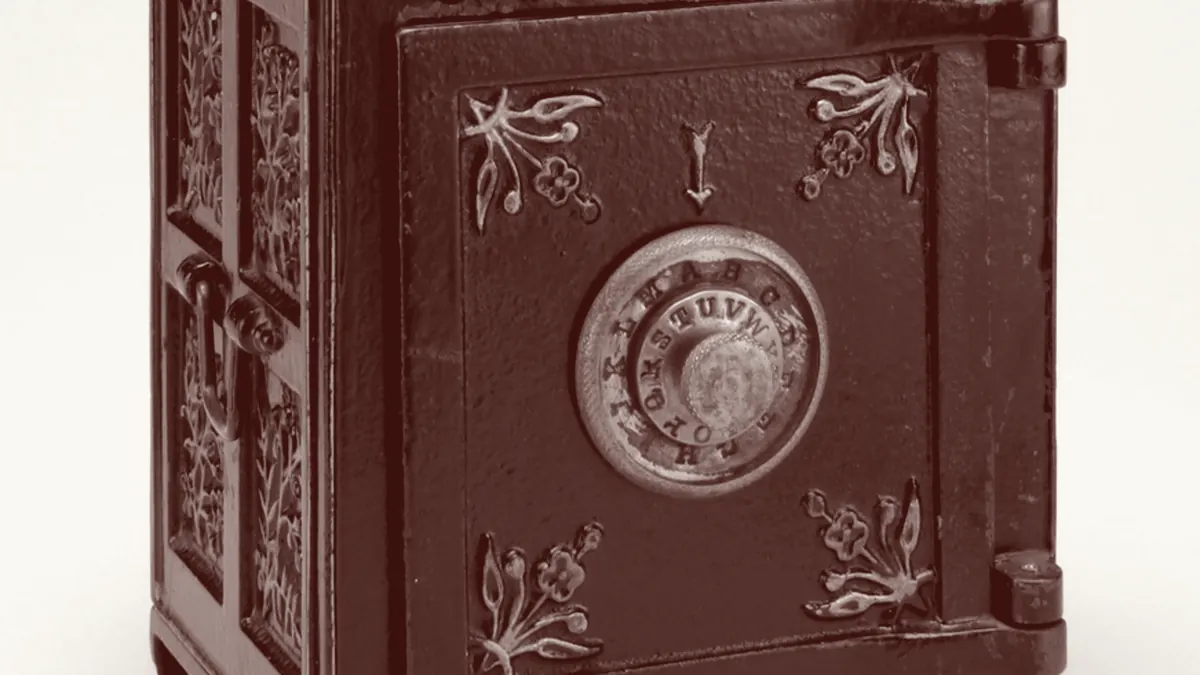
A password manager solves, once, the problem no amount of willpower solves: remembering forty different keys. The resistance to using one is almost never technical; it is the suspicion of putting every egg in one basket.
The arithmetic is simple. An ordinary person has between fifty and a hundred accounts with passwords. Nobody remembers a hundred distinct, long passwords. So there are only three ways out: reuse them, write them down, or delegate to a program that remembers for you.
Reusing is what turns a breach at some random shop into losing your email. Writing them on paper works better than people think, but it breaks the moment you need the key away from home. The manager is the third way out and the only one that scales.
What a manager actually does
It keeps your credentials in an encrypted database. Opening it requires a single master password, the only one you memorise.
The important part, and the one that answers the usual fear, is where the encryption happens: on your device, before anything is sent. What syncs to the company’s servers is an encrypted blob they cannot open, because your master password never leaves your machine. This is called a zero-knowledge architecture.
That has an uncomfortable consequence worth understanding before you start: if you forget the master password, there is no “forgot my password” button. Nobody can decrypt it for you. That is precisely why it is secure.
Beyond storing, a decent manager does three more things that save a lot of time:
- Fills in sign-in forms, which incidentally protects you from phishing: on a fake site the manager does not recognise the domain and offers nothing. That hesitation is a free alarm.
- Generates random passwords on the spot.
- Warns about reused, weak or breached keys.
The three types, with their trade-offs
The one in your browser
Chrome, Firefox, Safari and Edge all include one. It is free, already installed and syncs with your account.
For: zero friction. If you use nothing today, enabling it this afternoon is already a huge improvement.
Against: you are tied to that browser. Sharing keys with another person is awkward, and storing things that are not passwords — a licence, a note, a document — usually is not supported.
It is a perfectly reasonable choice for someone who just wants to stop reusing passwords and has no intention of going further.
The cloud service
Dedicated managers with their own app and cross-device syncing. This is the default for most people.
For: they work the same on any browser and system, allow family sharing, store secure notes, and often provide emergency access for a trusted contact.
Against: you depend on a company. Security incidents have happened at well-known providers, so check two things before choosing: that they publish external audits, and that their incident history was communicated transparently.
The local file
The manager is a program and your keys are an encrypted file you keep wherever you like: on disk, in your own cloud, on a USB stick.
For: total control. There is no company that can suffer a breach with your vault inside.
Against: syncing and backups are your problem. Lose the file with no copy and it is over.
It is the best option for people who enjoy control and the worst for people who do not want to think about backups.
How to choose in five minutes
Questions that matter:
- Does it work on all my devices? If you have an iPhone and Windows, check first.
- Has it passed external audits, and does it publish them? That is the difference between “trust us” and “check for yourself”.
- Can I export my data? That is your insurance for leaving without losing everything.
- Does it offer two-factor for the manager’s own account? It should, and you should turn it on.
- Will anyone else at home use it? If so, look at how a key gets shared, because doing it over a messaging app cancels half the benefit.
Questions that matter less than they seem: the pretty interface, the feature count, and whether it is the most famous one.
How to start without losing a Sunday
The classic mistake is trying to migrate a hundred accounts at once, getting bored at the third, and giving up. There is a far less painful way:
Day 1. Install the manager and create the master password. Make it a long phrase of five or six random words: it is the only thing you will memorise, so it is worth making good. Turn on two-factor for the manager and save the recovery code on paper, off the computer.
Day 1, ten minutes more. Change and store just three keys: main email, bank, and the manager itself. That already covers 80% of the real risk.
From then on, no plan. Every time you sign in somewhere, the manager will offer to save the password. Say yes. If that key is reused or weak, change it right then — two minutes. Within a few weeks almost everything will be inside without you having devoted a single afternoon to it.
After a month. Open the manager’s security report and work through whatever is flagged red: reused first, breached second.
The three mistakes worth avoiding
A weak master password. The whole system hangs from it. If it is London2024, you have built a safe and left the key in the lock.
Not saving the recovery code. This is the number one reason people lose their entire vault.
Keeping every two-factor code inside the same manager. It is convenient and it is a legitimate choice, but know what it means: if someone opens your vault, they have the password and the second factor. For critical accounts — email and banking — it is better for the second factor to live elsewhere.
What if the manager is breached?
It has happened and it will happen again. The right question is not whether a company can be attacked, but what they get if they succeed.
With a zero-knowledge design, they get encrypted vaults. Opening those means cracking master passwords one at a time, and there the quality of yours decides the outcome: a long, random phrase is effectively unbreakable with current technology; Barcelona2024 falls quickly.
In other words: even in the worst case, protection comes down to the same thing again. A good master password, long and unique.
In short
- A manager swaps the problem of remembering a hundred keys for remembering one good one.
- The browser’s built-in manager is a perfectly valid first step.
- Choose on audits, data export and two-factor, not on the interface.
- Migrate as you go, not all at once. Email and bank on day one.
- Long master password and recovery code on paper. Everything else is secondary.
Frequently asked
The questions that keep coming up
Is it safe to keep all my passwords in one place?
Yes, and it is safer than the real alternative, which is reusing the same key across dozens of services. Serious managers encrypt the database on your device with your master password, so not even the company can read its contents.
What happens if I forget the master password?
In most managers, you lose access. That is the price of the company not being able to read your data. This is why you save the recovery code on paper the same day you create the account.
Is the manager built into my browser good enough?
It is, and it is vastly better than using none. Its limits are that it works poorly outside that browser and usually offers fewer options for sharing keys or storing other kinds of data.
Is it worth paying for a manager?
It depends on use. Free tiers cover one person with a couple of devices well. People generally pay for unlimited syncing, family sharing or emergency access features.